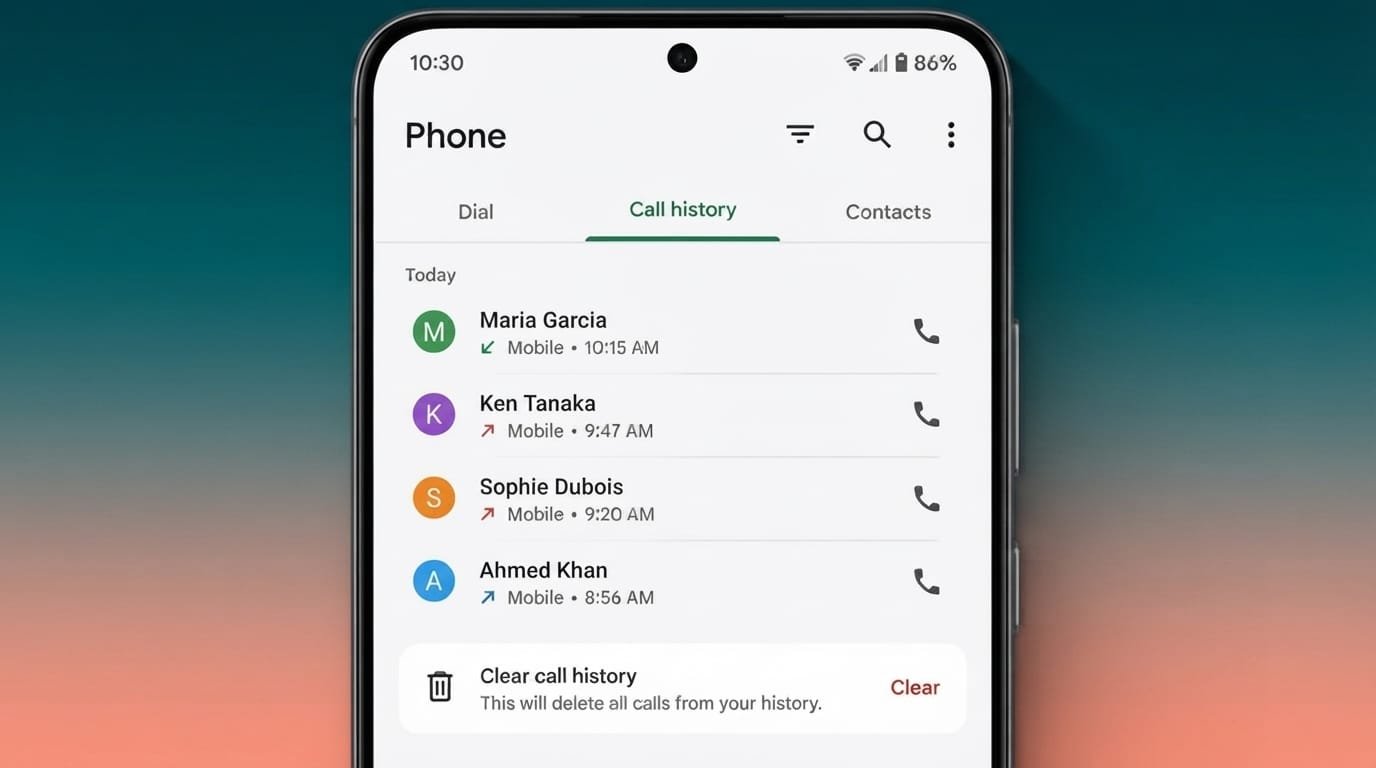
Your Android phone automatically keeps a record of recent calls in the Phone app. This list can include calls you made, calls you received, and calls you missed.
Call history is useful when you want to check when you last contacted someone or quickly return a recent call. However, an old call list can become crowded over time. You may also want to remove certain records for privacy reasons.
Fortunately, deleting call history on most Android phones is straightforward. The exact buttons can vary between manufacturers and Android versions, but the basic process is usually similar.
In this guide, we’ll explain what call history contains and show you how to remove individual calls, several records, or the complete call log.
Also Read: How to Clear Call History on Android: A Simple Step-by-Step Guide
What Is Call History on Android?
Call history, sometimes called a call log, is the list of recent phone calls saved by your Phone app.
Depending on your device and carrier, a call entry may show details such as:
- Contact name or phone number
- Date and time
- Call duration
- Whether the call was incoming, outgoing, or missed
The Phone app saves these details automatically so you can easily review your recent communication.
Why Delete Your Call History?
There are several practical reasons for removing old call records.
Protect Your Privacy
If you share your phone with family members or allow someone else to use it, they may be able to see your recent calls. Removing unwanted records can help keep this information private.
Keep Recent Calls Organized
A long list of old calls can make it harder to find the calls that matter. Removing unnecessary entries keeps the Recents section easier to manage.
Remove Specific Records
You may not want every call to remain in your call log. Android allows you to delete selected entries on many devices instead of removing everything.
Keep Your Phone Tidy
Call logs generally take up very little storage, so deleting them is not a major storage-saving method. Still, regularly cleaning old records can make your Phone app feel more organized.
How to Delete One Call From Your History
If you only want to remove a particular call, you usually don’t need to clear the entire call log.
Try these steps:
- Open the Phone app.
- Go to Recents, Recent Calls, or Call History.
- Find the call you want to remove.
- Tap and hold the call entry, or open its details.
- Look for Delete, Remove, or a similar option.
- Confirm the deletion if your phone asks you to do so.
The selected entry should then disappear from your recent call list.
Note: The exact steps may be slightly different on your phone. Some devices show the delete option after opening the call details instead of using a long press.
How to Delete Multiple Calls
You can usually select several call records and remove them together.
Here’s the general process:
- Launch the Phone app.
- Open Recents or Call History.
- Look for the three-dot menu or an Edit/Select option.
- Choose the calls you want to remove.
- Tap the Delete or trash icon.
- Confirm your choice.
This is useful when you want to clean up several old calls without deleting the entire history.
How to Clear Your Entire Call History
If you want to remove all available call records, your Phone app may provide a clear-history option.
Follow these general steps:
- Open the Phone app.
- Go to Recents or Call History.
- Tap the three-dot menu.
- Look for an option such as Delete, Clear Call History, or Delete Call Log.
- Select the option to remove all records.
- Confirm when prompted.
The wording can differ depending on your phone. If you don’t see an option to clear everything, check whether the app first requires you to tap Edit or Select All.
How to Delete Call History on Different Android Phones
Android manufacturers often customize the Phone app. Because of this, the menu names and layout may not be identical across devices.
📞 Get Call Details
Disclaimer: This tool is for educational/demo purposes only. It does not fetch real call records.
Samsung Galaxy Phones
On many Samsung Galaxy devices, you can generally:
- Open the Phone app.
- Tap Recents.
- Open the menu or tap the available delete option.
- Select the records you want to remove.
- Use Select all if you want to delete the complete list.
- Confirm the deletion.
The exact layout can change with different One UI versions.
Xiaomi, Redmi, and POCO Phones
On Xiaomi-related devices, the Phone app may use different menu labels depending on the software version.
A typical process is:
- Open Phone.
- Enter the recent-call list.
- Open the available menu.
- Select the delete or clear option.
- Choose the calls you want to remove.
- Confirm your selection.
OnePlus, OPPO, and Realme Phones
These phones may also provide a delete or edit option directly from the recent-call screen.
Generally:
- Open the Phone app.
- Go to the call log.
- Open the relevant menu or editing mode.
- Select one or more records.
- Tap Delete.
- Confirm if required.
Since software interfaces change over time, your phone may use slightly different names.
Can Deleted Call History Be Recovered?
Once a call record has been deleted, there is no guarantee that it can be restored.
Whether recovery is possible depends on factors such as your phone, backup settings, account synchronization, and how the call information was stored.
For example, an existing backup may contain older information, but restoring a backup does not necessarily mean that every deleted call record will return.
Third-party recovery applications also cannot guarantee successful recovery.
If a call record is important, it is better to save the necessary information before deleting it rather than relying on recovery later.
What Happens When You Delete Call History?
Deleting a call record normally affects the call log itself. It does not automatically remove other information from your phone.
For example, deleting a call entry does not normally:
- Delete the person’s contact
- Remove their saved phone number
- Delete WhatsApp conversations
- Delete photos or other files
- Remove your entire contact list
It simply removes the selected record from the Phone app’s call history.
Does Deleting Call History Remove WhatsApp Calls?
No. Regular phone call history and WhatsApp’s call records are handled separately.
Removing a normal phone call from the Android Phone app does not automatically delete the corresponding information inside WhatsApp.
If you want to manage WhatsApp call history, you need to use the call section within the WhatsApp app.
What If a Deleted Call Appears Again?
If an old call record seems to return after being removed, check whether your device is restoring information from a backup or syncing data between devices.
The exact reason can vary, so there is no single solution for every Android phone.
You can also check your backup and synchronization settings if the problem continues.
Why Can’t I Find the Delete Option?
The delete button may not always be visible on the main call-history screen.
Depending on your Android version and Phone app, you may need to:
- Open the call details first
- Long-press the call
- Tap the three-dot menu
- Enter an editing or selection mode
- Update the Phone app
If none of these options appear, search your phone’s built-in help or support documentation for the specific Phone app installed on your device.
Does Clearing Call History Free Up Storage?
Technically, deleting call records removes the data associated with those entries, but call history usually takes up a very small amount of storage.
Therefore, clearing your call log is unlikely to make a noticeable difference to your phone’s available storage.
If your device is running low on space, removing large videos, unused applications, downloaded files, or unnecessary media will usually have a much greater effect.
Frequently Asked Questions
Does deleting call history delete my contacts?
No. Removing call records does not normally delete saved contacts. Your contacts remain available in the Contacts app.
Can I delete just one call?
Yes. Most Android Phone apps provide a way to remove an individual call without clearing the rest of your history.
Can I delete several calls at once?
On many Android phones, yes. You can usually enter a selection or editing mode and choose multiple call records before tapping Delete.
Does deleting call history delete WhatsApp calls?
No. WhatsApp manages its own call records separately from the regular Android Phone app.
Can deleted call logs be recovered?
Recovery is not guaranteed. An available backup may contain older information, but whether a deleted call record can be restored depends on the device and backup configuration.
Will deleting call history make my phone faster?
Usually, no noticeable performance improvement should be expected. Call logs use very little storage and are not normally a significant cause of phone slowdown.
Also Read: WhatsApp Message Summaries and AI Chat Themes: What You Need to Know
Final Thoughts
Deleting call history on an Android phone is generally a quick process. You can remove a single call, select several entries, or clear the entire recent-call list, depending on what your Phone app supports.
Keep in mind that Android interfaces differ between manufacturers and software versions. If the steps above don’t exactly match your phone, look for similar options such as Recents, Call History, Edit, Select, or Delete.
Before removing important records, make sure you no longer need them. Once deleted, a call entry may not be recoverable.