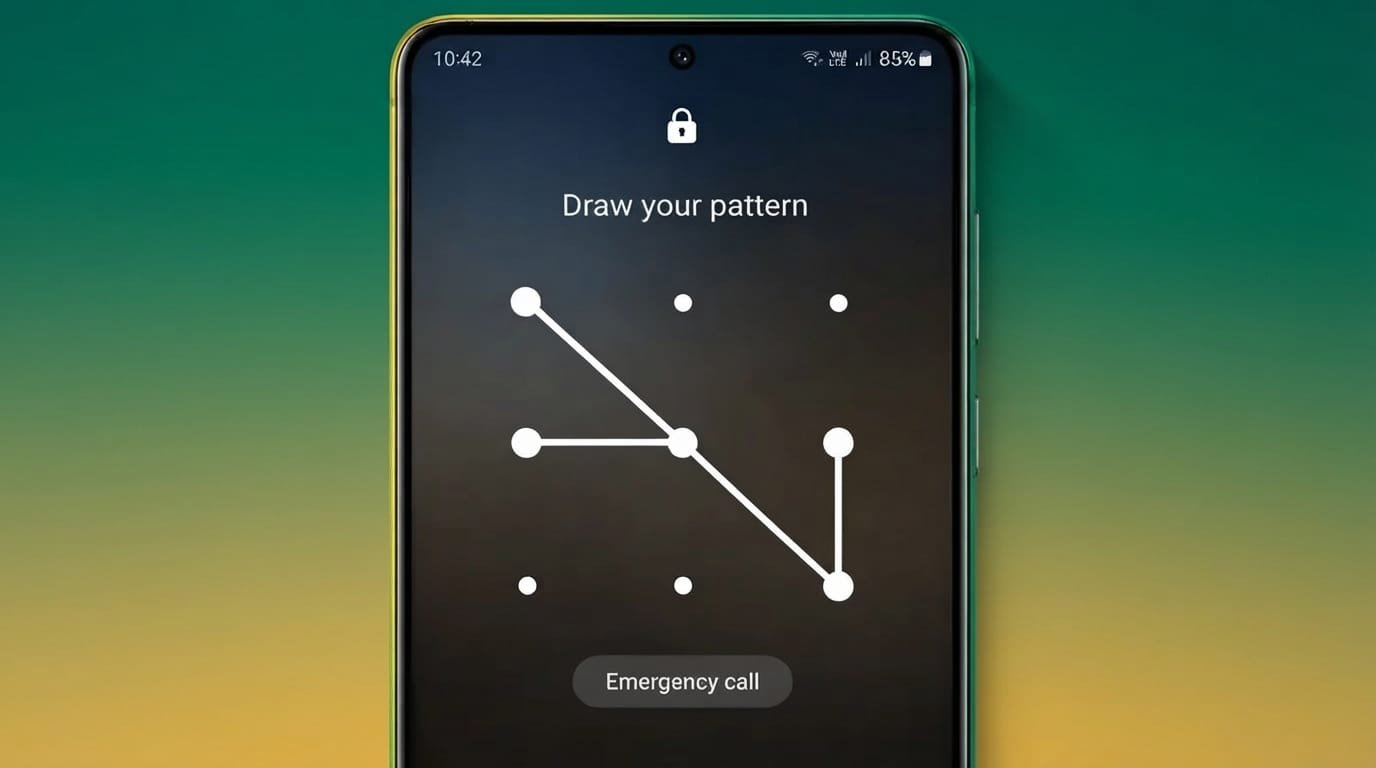
Keeping your phone protected is important, especially when it contains personal photos, messages, and other private information. A regular PIN or pattern works well, but some users may prefer a lock method that changes automatically.
Lock Screen – Time Password is an Android app that uses the current time on your phone to create a changing lock code. For example, if the current time is 09:45, the code may be 0945. Since the time changes every minute, the password can change as well.
The app also includes additional privacy tools such as a vault, private browsing options, and several lock screen customization features.
Also Read: How to Clear Call History on Android: A Simple Step-by-Step Guide
What Is Lock Screen – Time Password?
Lock Screen – Time Password is designed to provide an alternative to a fixed PIN or pattern. Instead of using the same password all the time, the app can generate a code based on the current time.
For example, when your phone shows 09:45, the time-based password can be 0945. When the clock reaches 09:46, the password changes accordingly.
The app also offers different lock methods, allowing users to choose a setup that suits their needs. Along with the lock screen, you can find features for protecting private files and customizing the appearance of the lock screen.
Why Use a Time-Based Password?
One benefit of a changing password is that you don’t have to rely on the same fixed PIN every time you unlock your phone. This can be useful if you are concerned about someone seeing or remembering your regular PIN.
The app may also be useful for people who frequently use their phones in public places. A changing code can make it harder for another person to simply remember a fixed PIN after seeing it.
However, no third-party lock screen app can guarantee that a phone is completely secure. Your phone’s built-in security features, app permissions, and the way the app is configured also matter.
How to Set Up Lock Screen – Time Password
Getting started is fairly simple. The exact options may vary depending on the app version and your Android device.
- Install the app from the Google Play Store.
- Open the app and complete the required setup.
- Grant the permissions needed for the features you want to use.
- Select your preferred lock method, such as Current Time or a PIN combined with time-based options.
- Customize the lock screen with your preferred wallpaper, text, sound, and vibration settings.
- If available, set up the vault for storing private photos or videos.
- Explore the privacy-related browser options if you want to use them.
- Test the lock screen before relying on it as your primary method of access.
On some Xiaomi and other Android phones, additional background or auto-start settings may be required for third-party lock screen apps to continue working after a restart.
🔐 Mobile Pattern Lock Generator
Main Features
Dynamic Time-Based Password
The app can use your device’s current time to create a changing password. This means the code is not necessarily the same every time you unlock the phone.
Different Lock Methods
Depending on the version of the app, you may find several combinations, including:
- Current Time
- PIN + Minute
- PIN + Current Time
- PIN + Day
- PIN + Hour
These options give users more flexibility when setting up the lock screen.
Private Vault
The built-in vault is designed to keep selected photos and videos away from the regular gallery view. If you use this feature, make sure you understand how the app stores your files and how they can be recovered before removing the app.
Private Browsing
The app may also provide a private browsing feature intended to reduce the amount of browsing information saved locally. Keep in mind that private browsing does not make you completely anonymous online. Your internet provider, websites, or other services may still collect information according to their own policies.
Lock Screen Customization
You can personalize the appearance of the lock screen with options such as:
- Custom wallpapers
- Personal photos
- Unlock sounds
- Vibration settings
- 12-hour or 24-hour clock format
- Custom name or text
- Different visual effects
Lightweight Design
The app is designed to run as a relatively small utility, although actual battery and memory usage can vary depending on your phone, Android version, and how the app is configured.
Permissions You May Need
Third-party lock screen apps often require additional Android permissions because they need to display an overlay or perform certain actions in the background.
Depending on the app version, you may see permissions or access requests related to:
- Internet access: Used for online features and advertising.
- Phone state: May be needed for handling certain phone-related events.
- Display over other apps: Allows the lock screen to appear over other applications.
- Camera: May be used for camera-related features or wallpaper functions.
- Photos and storage: Required when selecting personal images or managing files.
- Phone-related access: May be needed to respond correctly when a call starts or ends.
Always review the permissions shown by Android before allowing them. If a permission is not needed for a feature you want to use, consider leaving it disabled.
Also, don’t assume that an app collects no information simply because it requests only common permissions. Check its current Google Play listing and privacy policy for the most accurate information.
Settings for Xiaomi and MIUI Devices
Some Xiaomi devices use aggressive background management, which can affect third-party lock screen apps.
If the lock screen stops working after restarting your phone, check the following settings:
- Open the Security app.
- Go to Permissions or the relevant app-management section.
- Find Lock Screen – Time Password.
- Allow the permissions required by the app.
- Check whether Auto Start is enabled.
- Make sure the system is not restricting the app from running in the background.
The names and locations of these settings can differ between Xiaomi models and MIUI/HyperOS versions.
Pros and Cons
Pros
- Uses a changing time-based password
- Offers multiple lock methods
- Includes a private vault
- Provides lock screen customization
- Offers additional privacy-related features
- Simple concept for users who want an alternative to a fixed PIN
Cons
- The free version may contain advertisements
- Requires several Android permissions
- Setup may require extra steps on some Xiaomi devices
- Third-party lock screen apps can sometimes conflict with Android system settings
- Privacy and security depend on the app’s current implementation and your device configuration
Our Take
Lock Screen – Time Password can be an interesting option if you want something different from a traditional fixed PIN or pattern. Its main attraction is the time-based password, which changes as the clock changes.
The additional vault and customization tools may also be useful for people who want more features in one application.
That said, it is better to treat the app as an additional privacy tool rather than a guarantee of complete phone security. Android’s built-in screen lock, device encryption, software updates, and sensible permission settings remain important.
Frequently Asked Questions
How can I open the app settings if they are hidden?
The exact steps depend on your Android version and device. You can usually find the app through:
Settings → Apps → Lock Screen – Time Password → Storage
From there, you may see options related to the app’s stored data.
What if I forget my lock settings or PIN?
If the app provides no recovery option, clearing its app data may reset its settings. However, this should be treated as a last resort because clearing storage can remove locally stored app information.
Before doing this, check whether the app provides an official recovery method.
Can I use my own photo as the lock screen wallpaper?
Yes, if the current version of the app supports custom wallpapers. Open the app’s lock screen settings, look for the wallpaper option, and select a photo from your device.
What happens to files stored in the vault if I uninstall the app?
Be careful when uninstalling any app that stores private files locally. Depending on how the vault works, removing the app could also remove its stored data.
Before uninstalling, recover or back up any important files and check the app’s current instructions for data recovery.
Also Read: WhatsApp Message Summaries and AI Chat Themes: What You Need to Know
Final Thoughts
Lock Screen – Time Password offers a different approach to phone locking by using changing, time-based codes instead of relying only on a permanent PIN.
Its combination of lock options, customization tools, vault features, and private browsing makes it more than a basic lock screen utility. However, users should review the permissions carefully and avoid treating any third-party app as a complete security solution.
If you decide to use it, take a few minutes to configure the lock method, test it properly, and make sure you know how to recover your files and settings before storing anything important in the app.